 CombatDash
The Tracker combines seven live lists in one window: Enemies, Buffs, INC, Heals, PLAYERS, OOC, and Events. Each tab uses an icon. Move the pointer over an icon to see its name. One resize grip changes the height for all tabs.
Enemies
Enemies shows Freeps from the current fight or a fight that ended recently. Class icons show the best known classification.
You can clear the list manually. The chat button can share the count, names, classes, or group composition. Right-click the chat button to select a channel.
Short combat breaks can continue the same enemy list. A longer break starts a new list.
Entries later identified as friendly disappear from the enemy view and count. Known pets do not count as enemy players either.
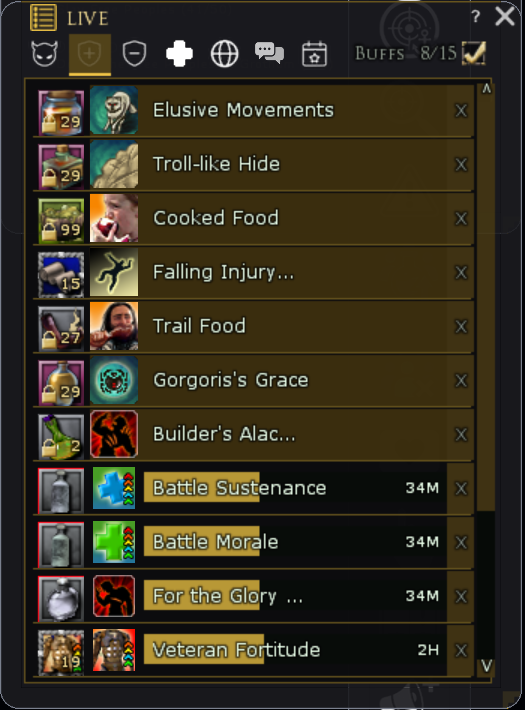
Buffs
Buffs shows linked consumables and their active effects. Remaining time, stack state, and missing buffs are visible.
The row colour shows its state: Yellow means that the linked effect is missing or has expired. Blue means that an equivalent buff is active and the item cannot be used yet. Red means that the item stack is empty. An active effect has no warning colour and instead shows its normal remaining-time bar. The tab icon blinks while at least one linked effect is missing.
Known food, buff potions and cures in your bags are assigned automatically when CombatDash starts. Inventory changes update the links; a check every 30 seconds catches missed changes. If a stack runs out, restock the same item: your selection stays saved and reconnects. To choose another variant or add a class skill, open Options > Buffs or Cures and drag it into the matching slot. Removing a link keeps that item or buff unassigned until you add it manually. To renew a buff, right-click once or left-double-click the left item field of its row. This uses the matching consumable found in your backpack. A single left-click is insufficient for these resolved items.
Below the consumables, the Tracker shows other timed positive effects. Effects with the shortest remaining time appear first.
INC: Incoming debuffs
INC shows timed harmful effects on your character. Each row contains the original LOTRO icon, remaining time, and a duration bar. Move the pointer over the icon to see the original LOTRO tooltip.
CombatDash excludes known self-applied harmful effects by their effect ID. The LOTRO API does not provide the source or caster. INC therefore cannot prove that an effect came from a Freep. An effect remains visible until LOTRO removes it or its timer expires, including a trailing effect just after combat.
Heals
Heals shows who healed you in the current fight. Without an active fight, the tab uses the latest saved fight.
The list shows the healing rate and largest heal for each source. The chat button shares the most important entries.
PLAYERS
PLAYERS opens the Player Registry. This chapter describes the view briefly. Chapter 3: Player model explains classification, storage, and data exchange.
You can search by name and filter by side, class, or personal status. Right-click to open classification. Double-click to open the Player Card.
OOC
OOC shows the 20 most recent unique speakers in the OOC channel. A new message moves that player back to the top without creating a duplicate.
Right-click to open classification. Double-click to open the Player Card. This list lasts only for the current plugin session.
Events
Events shows a chronological session log. It collects identified fights, deaths, revives, kills, and alerts.
Filters control categories such as Combat, Death/Rezz, Kills, Alerts, Tracks, Map/Keep, Drake, and Ranger. The log stores up to 200 entries and ends on plugin reload.
When an item does not respond
Use automatically discovered items and saved links resolved to a backpack item with a right-click or left double-click on the left icon. Manually dropped shortcuts retain their single left-click action. Make new assignments under Options → Buffs/Cures, not inside LIVE, HUD or Dashboard.
If activation fails, open your inventory and try the item there. Report the item, active effect, stack count and click type. Saved-link repairs, recovery after completely empty stacks and reactive cures on HUD/Dashboard still need further in-game checks. A visible icon alone does not prove that its native action works.
Show only buff items you own
Open LIVE → Buffs and enable the small checkbox beside the count in the header. Its tooltip explains the inventory filter. It starts disabled and remembers your choice. Toggling it resets scrolling and refreshes the count and visible rows.
With the filter enabled, the list includes only buffs with a known item in your backpack. Effect-only rows without a matching item disappear from this view. Another known item variant for the same buff also qualifies. Your saved item link is not replaced: the filter changes the view, not the selected action. Disable it to see missing items and effect-only rows again. The latest filter correction still needs an in-game check.
Additional known morale and power potions can automatically fill free binding slots even when a potion is already assigned. Each category still has five slots. Existing bindings and excluded items are preserved. Rejuvenation can be assigned to both categories. The expanded item variants still need in-game verification.