 CombatDash
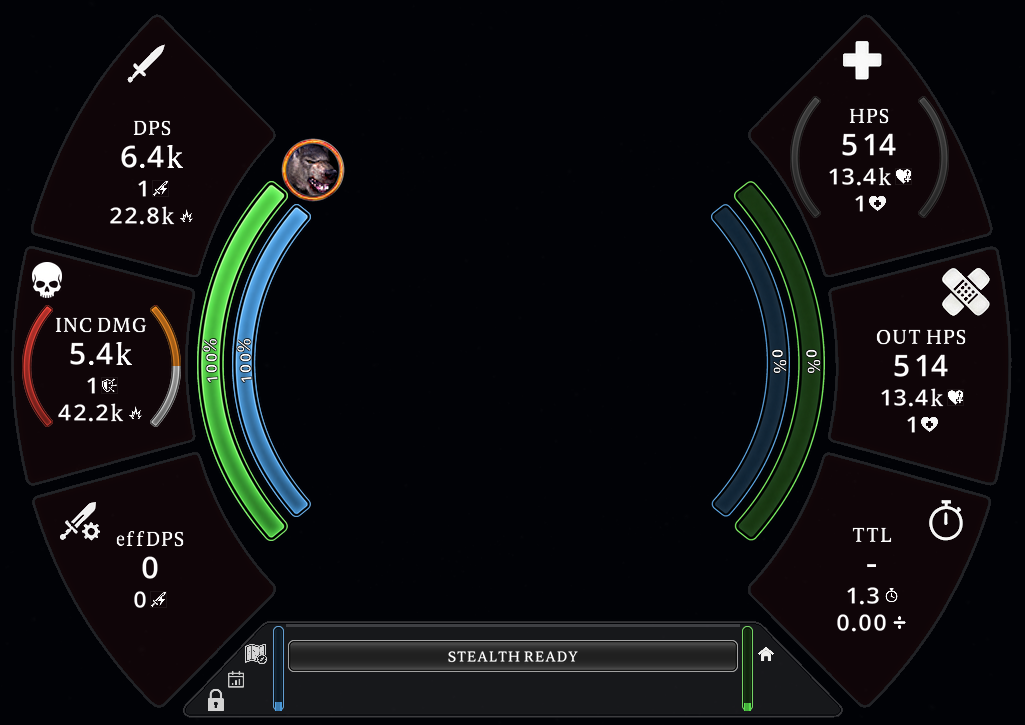
The HUD is a transparent combat display around the screen center. Most areas let mouse clicks pass through; buttons and tooltip areas receive mouse input.
The HUD shows the same six main metrics as the Dashboard. Curved bars show your morale and power plus the current target's morale and power. Percentage values follow the bars.
Display options
Under Options → HUD, choose whether the HUD is visible always or only in combat. Depending on the selected display mode, the HUD can show all secondary values or focus on the large primary numbers.
The frame flashes red when combat starts. A green pulse marks the return to the out-of-combat state. These pulses are separate from the tile backgrounds, which follow stance, aura, or devotion when the class supports it.
HUD layout
Left side
- DPS shows your outgoing damage per second.
- INC DPS shows your incoming damage per second.
- eDPS shows the smoothed morale loss of your current target.
Right side
- HPS shows healing received per second.
- OUT HPS shows healing done per second.
- TTL estimates your remaining survival time at the current net damage rate.
Top: bubbles
The top area shows active bubbles with their source, class, and remaining duration. Multiple known providers are combined.
Bottom: PORT, MARCH, and TRACK
These three status bars report travel cooldowns, march state, and detected tracking. They appear only while a matching state exists.
Bottom: CSA
The class-specific area adapts to War-leader, Defiler, Reaver, Warg, Weaver, Blackarrow, and Angmarim Sorceress. Depending on the class, it shows stances, reactive skills, stacks, active phases, and cooldowns. It also contains the battle-momentum bar, reactive cures, and the narrow Lua memory (MEM) and frame-latency (LAT) monitors.
Reviewing daily values
Open Statistics → Daily Stats to compare recorded days. Choose year, month and day, or use Today and the arrows for recorded days. Total offers Records or Totals. Rates and single hits remain maxima; they are not added. Damage and healing include NPC combat. A dash means “not recorded”, not zero. The first day can be partial. Recording starts when CombatDash collects the data; earlier game days are not reconstructed.
Tile background colors
The tile background colors show the current stance or a similar class state. They are not decorative only.
| Class | Meaning of the background color |
|---|---|
| War-leader | The three left tiles follow the stance. The three right tiles follow the aura. Red means damage and green means healing. |
| Defiler | All six tiles follow the stance. Red means damage and green means healing. |
| Warg | Red means Shadow stance. Blue means Flayer stance. |
| Angmarim Sorceress | The color follows the active Devotion: Acid, Fire, Gelid, or Umbral. |
| Other Creep classes | The tiles use a neutral background. |
The left and right tile groups can use different colors for a War-leader. Its stance and aura change independently.
Combat pressure brackets
The brackets beside INC and HPS show more combat data:
- The left INC bracket shows the ratio of tactical to physical incoming damage.
- The right INC bracket shows damage over time relative to your current morale.
- The left HPS bracket shows your current incoming healing rate relative to your morale.
- The right HPS bracket shows active healing over time relative to your morale.
The pressure brackets use a stronger color tier at 25 and 50 percent of your current morale.
Other HUD areas show:
- PORT, MARCH, and TRACK states
- the Bubble source, class, and remaining time
- class-specific stacks and cooldowns
- active attackers and current healing pressure
- the identified class or side icon of the target
- the Map action on the left and the SEND Quickslot for class-specific performance data on the right
You can show the HUD at all times or only during combat. Change this setting under Options → HUD.
The HUD and Dashboard are two views of the same combat data. You can use both.
Morale forecast: is healing enough?
When damage and healing arrive together, look at your own morale arc. Red inside the fill marks the expected loss over the next five seconds. Pale green above the fill marks an expected gain. The forecast uses recent damage and healing rates; it is an estimate, not a prediction of enemy actions.
It appears only for a significant change during a live fight. It stays hidden while temporary morale is active. Disable it under Options → HUD → Morale forecast. Rendering and behaviour under load still need in-game confirmation.
TTL colour: compare healing with damage
With significant incoming damage, the TTL tile shows survival status: green means healing covers damage, amber means it almost keeps up, and red means it falls clearly short. Below five seconds estimated survival, the warning colour becomes stronger. Below 50 percent morale, it stays at least amber; green can return from 75 percent. Changes are deliberately delayed to avoid flickering with brief fluctuations.
Lingering damage can retain the colour after combat ends. Without a usable fight value, TTL shows a dash. The status colour belongs to this tile; other class and stance colours remain separate.
MEM, LAT and the lower controls
Hover MEM for current Lua memory, growth, startup baseline and bar scale in MiB. It is not total game RAM. LAT shows timer delays, a smoothed bar value and the frequency of gaps above 50 ms. It is not network ping. The compact tooltips contain the measured values only.
SEND sits at the lower right of the class-specific area, with COUNTDOWN above it. Right-click SEND to choose Group or Raid. Your click is still required to post the message.
For a Warg, Flayer shows ten seconds active followed by a fifteen-second cooldown. Early effect removal starts cooldown immediately. This timing correction is implemented; the in-game check remains pending.
Read the target morale trend
Look at your target's morale arc: red marks an expected loss and pale green a gain over the next five seconds. This forecast uses observed changes in target morale, including other players' damage and healing. It does not measure your damage alone.
Switching targets starts a new warm-up. Missing or stale samples, temporary morale, death, changed maximum morale and fight end reset the target forecast. A hidden overlay therefore does not necessarily mean no damage is occurring. Options → HUD → Morale forecast controls both arcs together. Current rendering and performance still need in-game checks.
Compare observed deaths
The narrow red-and-blue battle bar compares observed deaths in the current fight. A larger red share means more Freeps died; a larger blue share means more Creeps died. Revivals are recorded separately and never subtract a death. Unknown factions do not count. This is not a complete tally for the whole map.